Connect your domain: the setup guide and MX record
Five steps from adding your domain to checking that mail flows through X-Protection.
Open the setup guide
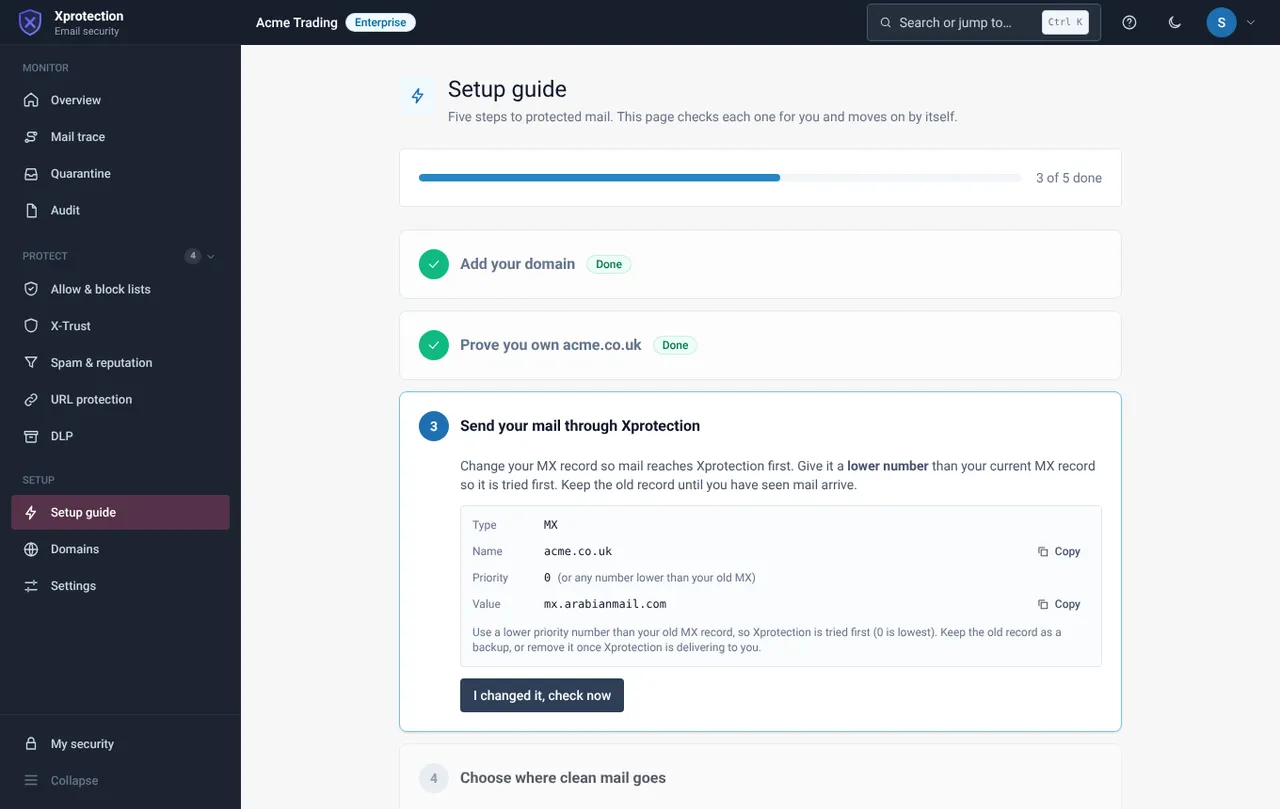
Choose Setup, then Setup guide. A progress bar tracks five steps: add your domain, prove you own it, send your mail through X-Protection, choose where clean mail goes, and check it works.
Add the domain and prove ownership
Type your domain and add it, then publish the ownership record shown at your DNS host. The page checks it.
Publish the MX record
Add a record of type MX for your domain with the value mx.arabianmail.com and a priority lower than your existing record (for example 5). Select I changed it, check now.
Choose where clean mail goes
Under Settings, Mail connection, choose the Arabian Mail platform or another mail system. See the mail connection guide.
Check that it works
Send a test message to an address on the domain and open Mail trace. You should see it with the result delivered.
The record to publish
| Field | Value |
|---|---|
| Type | MX |
| Name | Your domain, for example acme.com |
| Priority | Lower than the existing record, for example 5 |
| Value | mx.arabianmail.com |
If something goes wrong
The check still fails
DNS changes can take minutes to hours. Check for a typo in the value and that you edited the right domain, then select Check again.
Related guides
Add domains and read domain health
See whether ownership, MX, SPF and DMARC are right, and copy the exact record to fix.
X-ProtectionChoose where clean mail is delivered
Deliver to the Arabian Mail platform or to another mail system, and test it.
X-ProtectionTrace a message: what happened to this email
Search by sender, recipient, subject or IP and open a row for the full story.
Still need help?
Tell us what you were trying to do and what you saw on screen. We will help you finish it.