Mail Admin (Client Portal)For: Organisation administrators3 min readUpdated
Change your password, colour and logo in Settings
Manage your own sign-in and brand the portal with your colour and logo.
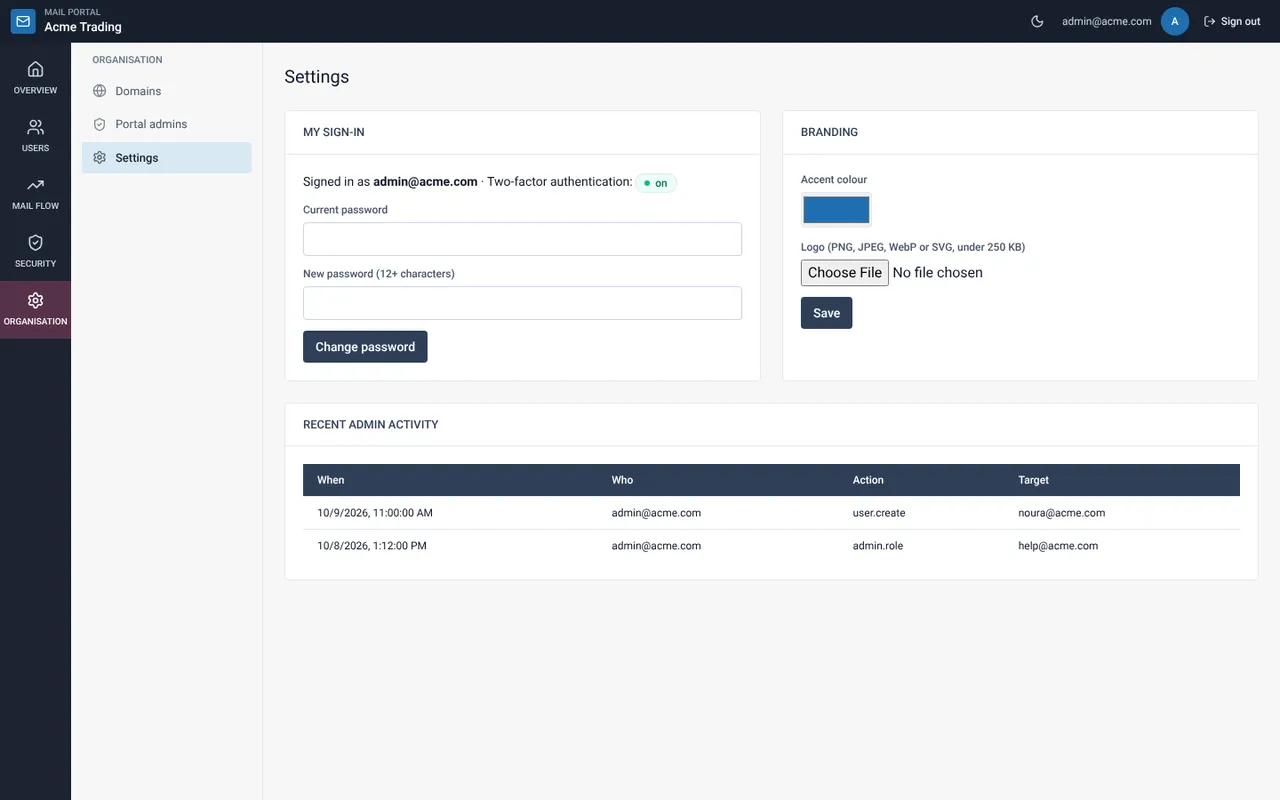
Open Settings
Choose Organisation, then Settings.
Change your password
Under My sign-in enter the current and the new password (12+ characters) and select Change password. The card also shows whether two-factor is on.
Set colour and logo
Under Branding pick an accent colour and upload a PNG, JPEG, WebP or SVG logo under 250 KB. Select Save.
Review admin activity
The table lists what portal admins did recently, who did it and to what.
Related guides
Mail Admin (Client Portal)
Add portal admins and choose their roles
Give colleagues portal access as Admin, Helpdesk or Read-only.
Mail Admin (Client Portal)First sign-in to the portal: new password and two-factor
Your first sign-in has two required steps: choose a new password, then set up a six-digit code.
Still need help?
Tell us what you were trying to do and what you saw on screen. We will help you finish it.