First sign-in to the portal: new password and two-factor
Your first sign-in has two required steps: choose a new password, then set up a six-digit code.
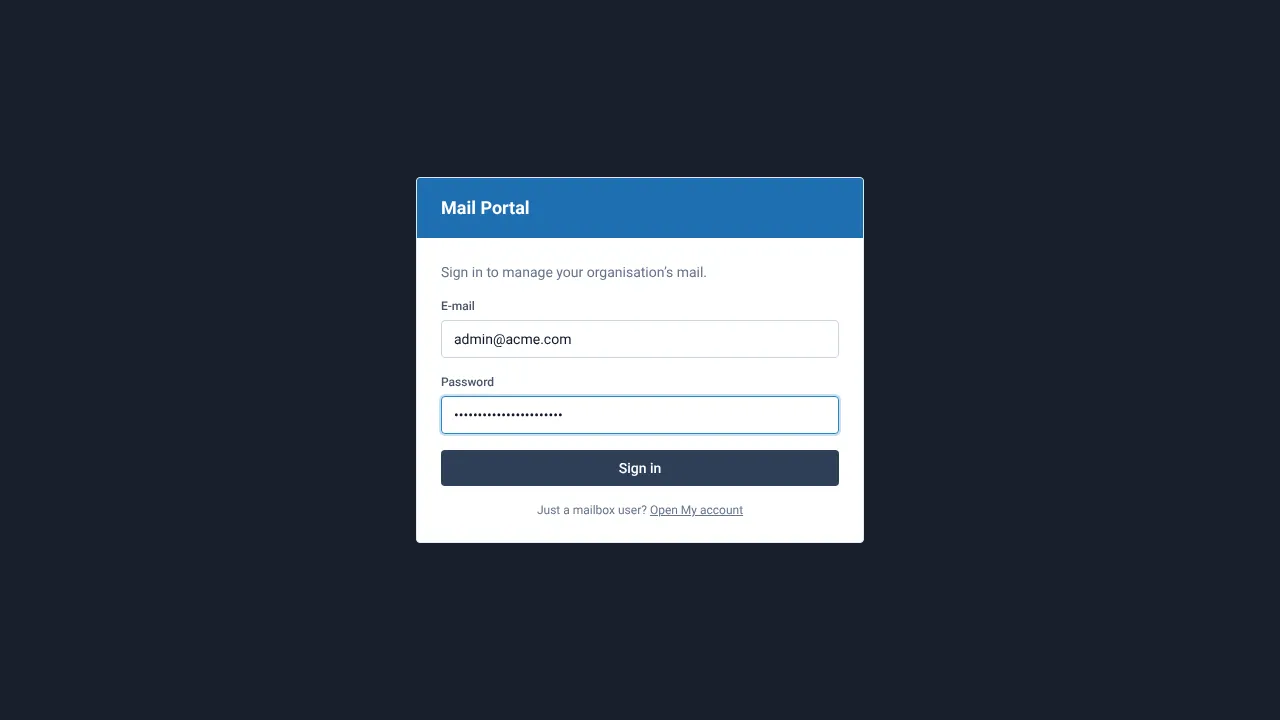
Open the portal and sign in
Open the portal address your provider sent you (for example portal.arabianmail.com). Enter your e-mail address and the temporary password you were given.
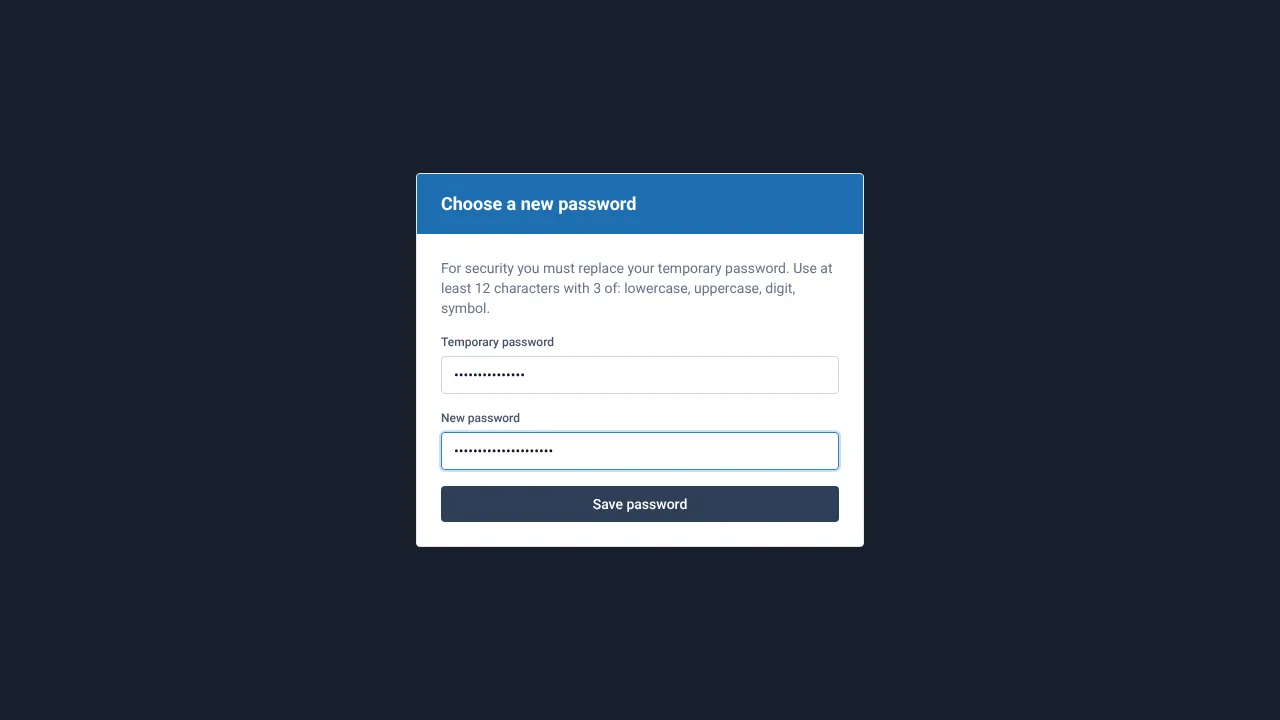
Choose a new password
The portal asks you to replace the temporary password. Type the temporary one, then your new password: at least 12 characters with three of lowercase, capital letters, digits and symbols. Select Save password.
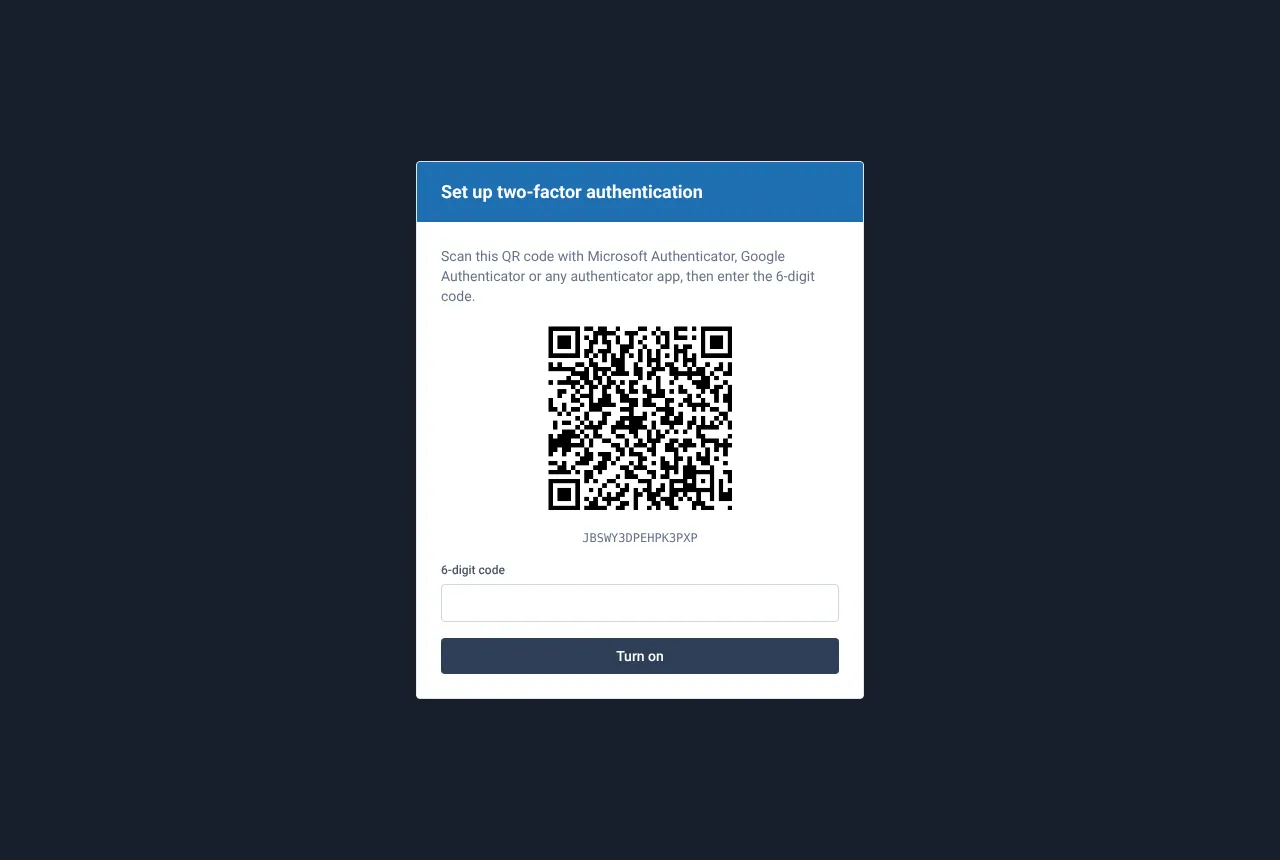
Set up two-factor authentication
Scan the QR code with Microsoft Authenticator, Google Authenticator or any authenticator app. Type the 6-digit code and select Turn on.
Sign in with a code from now on
The next time, enter your password and the 6-digit code the portal asks for. You land on the Dashboard.
If something goes wrong
I lost my authenticator
Another portal Admin can reset your two-factor from Organisation, Portal admins. If you are the only admin, ask your provider.
The temporary password does not work
It is shown once and may have been mistyped. Ask an Admin to use Reset password on the Portal admins page to get a new one.
Related guides
Read the dashboard
The dashboard answers one question: is our mail healthy? Here is how to read each part.
Mail Admin (Client Portal)Add portal admins and choose their roles
Give colleagues portal access as Admin, Helpdesk or Read-only.
Mail Admin (Client Portal)Portal roles: what Admin, Helpdesk and Read-only can do
A table of what each portal role can and cannot do.
Still need help?
Tell us what you were trying to do and what you saw on screen. We will help you finish it.