Set up your phone or mail app
Add your mailbox to an iPhone, Android phone, Outlook or Thunderbird with the right server settings.
Open Set up a device
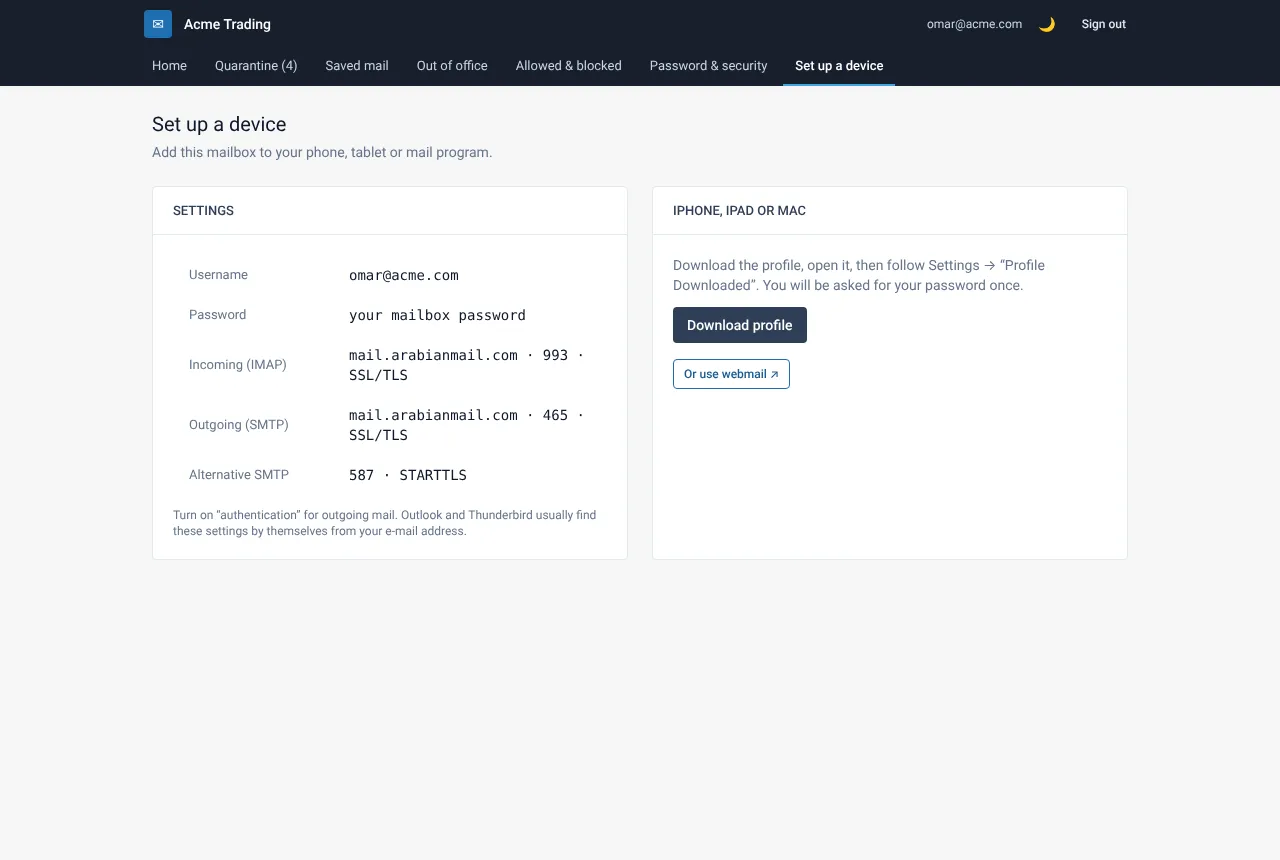
Sign in to My Account and choose Set up a device. The page shows the exact settings for your mailbox.
On iPhone, iPad or Mac
Select Download profile and open the file. The profile sets up the account in a few taps. It contains no password, so you type it while installing.
On Android, Outlook or Thunderbird
Add a new account of type IMAP. Enter your full address as the username and the settings from the technical reference below. Many apps find the settings automatically from just your address.
Send yourself a test
Send a message to your own address and reply to it. If both arrive, sending and receiving work.
Settings at a glance
| Setting | Value |
|---|---|
| Username | Your full e-mail address |
| Incoming (IMAP) | mail.arabianmail.com, port 993, SSL/TLS |
| Outgoing (SMTP) | mail.arabianmail.com, port 465, SSL/TLS |
| Alternative outgoing | Port 587, STARTTLS |
If something goes wrong
Outgoing mail is refused
Turn on “my outgoing server requires authentication”, and use your full address and password. Ports 465 and 587 need a sign-in.
The app says the certificate is not trusted
Check the server name exactly as shown in My Account. A wrong host name causes certificate warnings.
Still need help?
Tell us what you were trying to do and what you saw on screen. We will help you finish it.