Pause sending when a mailbox may be compromised
Stop a user from sending while they can still receive mail, then fix the cause.
Open Active users
Look for a user whose Sent (hour) number is unusually high, or one marked sending paused by the automatic protection.
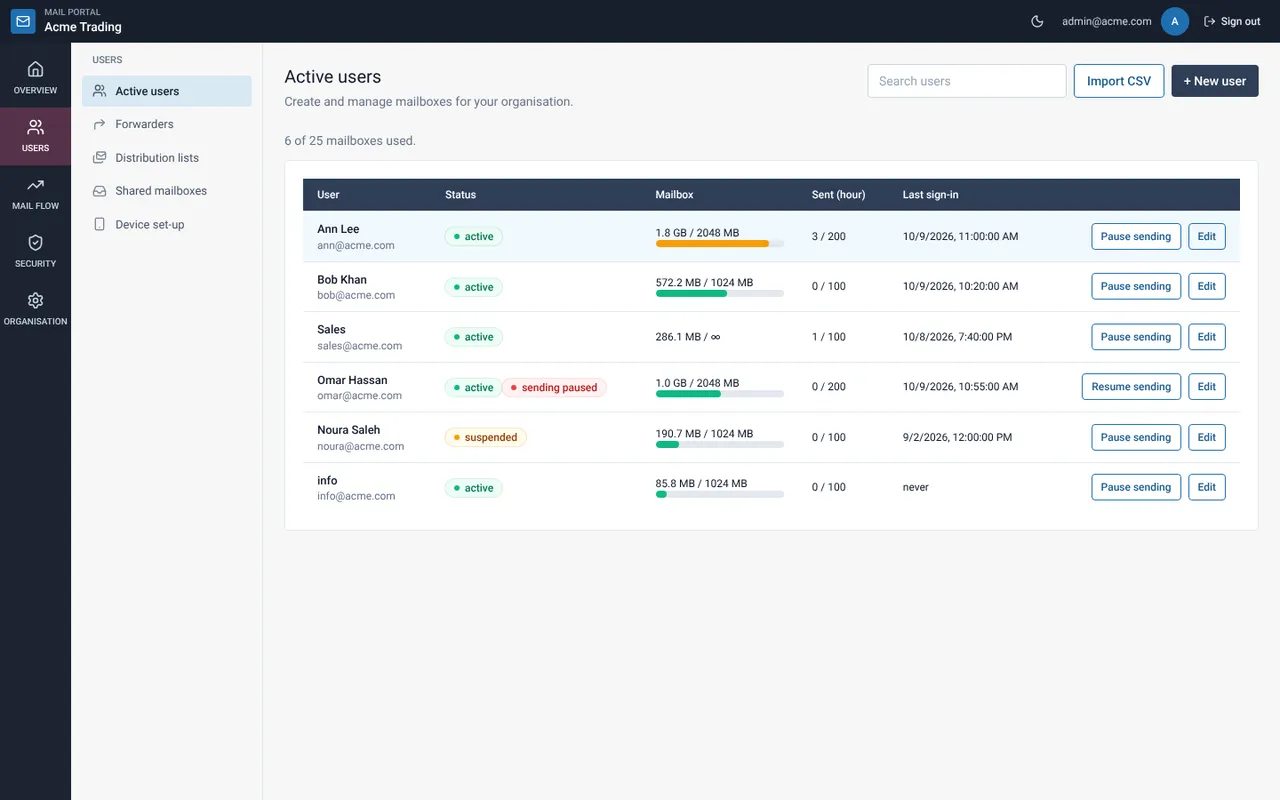
Select Pause sending
Confirm the question. The user can still receive mail and sign in, but cannot send.
Find and fix the cause
Reset the user’s password, check Sign-in activity for failed or unknown sign-ins and ask the user to scan their device for malware.
Select Resume sending
When the mailbox is safe, select Resume sending on the row.
Related guides
Review sign-in activity
Spot password guessing and unknown sign-ins to your users’ mailboxes.
Mail Admin (Client Portal)Set up alerts
Get an e-mail when a mailbox is nearly full, sign-ins fail or a mailbox may be compromised.
Mail Admin (Client Portal)Change a user’s size, limits or password
Edit a mailbox: display name, size, sending limits and a new password.
Still need help?
Tell us what you were trying to do and what you saw on screen. We will help you finish it.