Turn on two-factor sign-in
Add a six-digit code from your phone to My Account, so a stolen password alone is not enough.
Install an authenticator app
On your phone install Microsoft Authenticator, Google Authenticator or any app that supports time-based codes (TOTP).
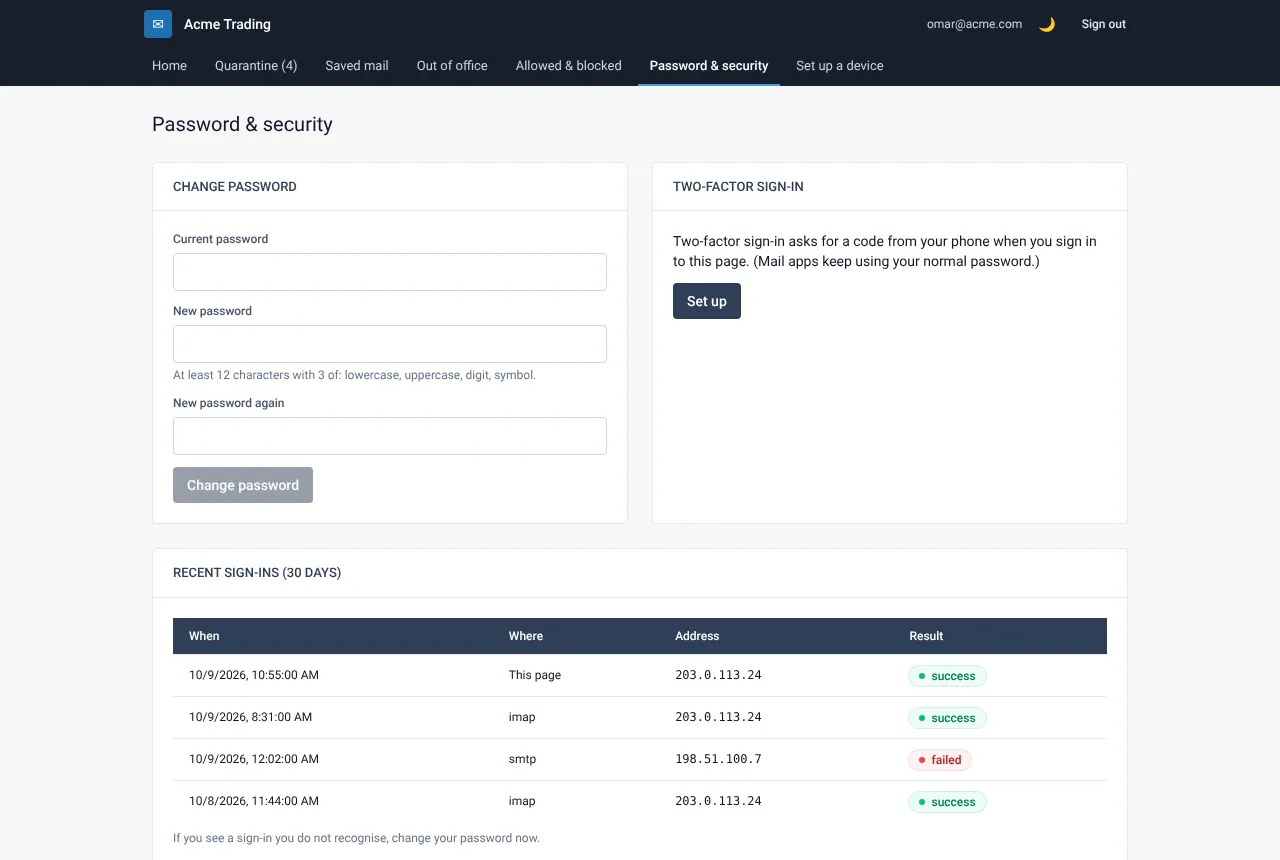
Open Password & security and select Set up
In My Account choose Password & security. Under Two-factor sign-in select Set up (shown as Turn on once started).
Scan the QR code
In the authenticator app add an account and scan the QR code on the screen. If you cannot scan, type the secret shown under the code instead. Keep that secret private.
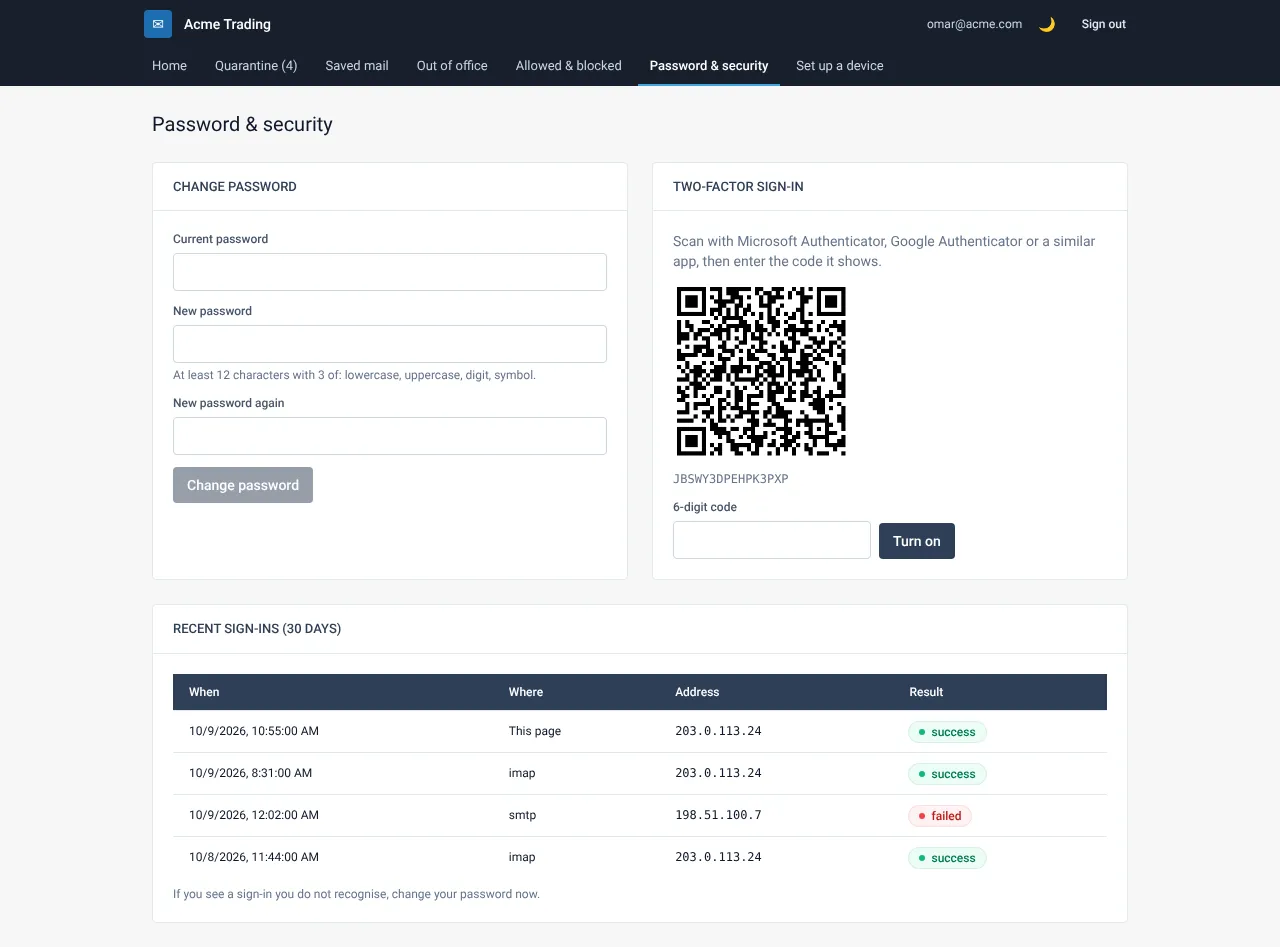
Enter the six-digit code
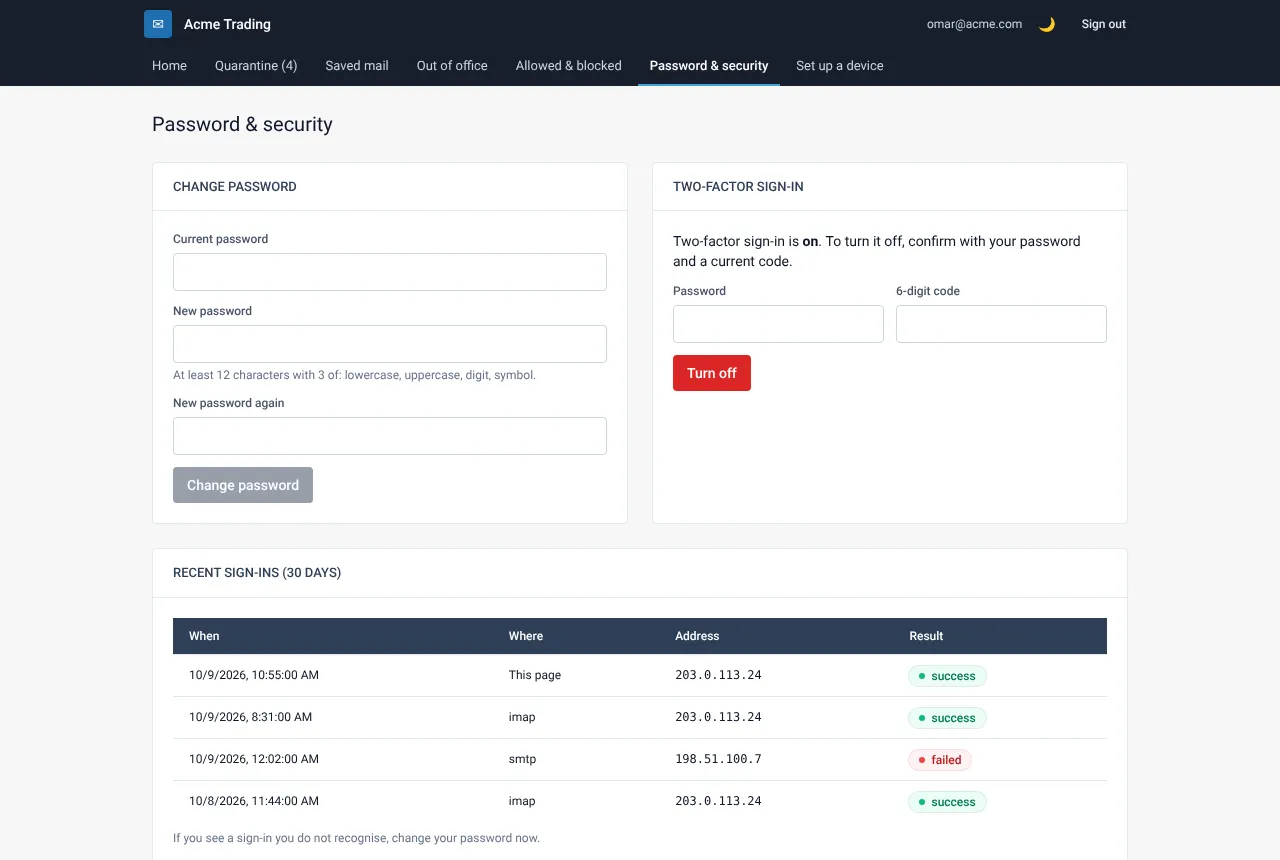
Type the 6-digit code the app shows now and select Turn on. The card changes to “Two-factor sign-in is on”.
If something goes wrong
The code is refused
Use a new code (they change every 30 seconds) and make sure the phone clock is set to automatic.
Does two-factor protect my phone mail app too?
No. Two-factor protects the My Account page. Your mail apps and webmail use the mailbox password, so keep it strong and private.
Related guides
Turn off two-factor sign-in
Remove the code requirement, for example when you change phone.
Web Mail PortalChange your password
Replace your mailbox password with a new strong one, in three minutes.
Web Mail PortalCheck your recent sign-ins
See who signed in to your mailbox in the last 30 days and spot anything you do not recognise.
Still need help?
Tell us what you were trying to do and what you saw on screen. We will help you finish it.